Core Web Vitals for WordPress: Optimization Guide (2026)
Why WordPress trails other platforms on Core Web Vitals, and exactly how to fix it: page builders, plugins, hosting, images, and fonts.

Core Web Vitals for WordPress measure how fast, responsive, and visually stable your WordPress site is for real visitors. WordPress powers over 40% of the web but trails Shopify, Wix, and Squarespace on mobile Core Web Vitals pass rates. The main causes: heavy page builders, plugin bloat, unoptimized images, and slow shared hosting. With the right theme, hosting, and optimization strategy, WordPress sites can pass all three metrics.
Last reviewed by Arjen Karel on February 2026
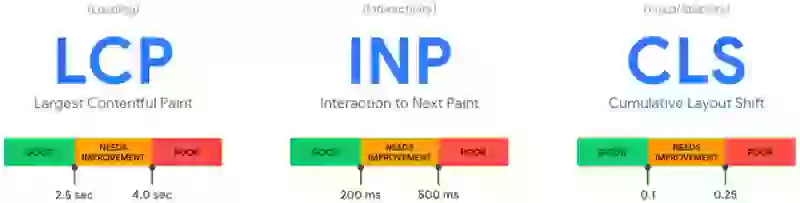
WordPress and Core Web Vitals: The State of Play
WordPress has a performance problem. According to the Core Web Vitals Technology Report (powered by CrUX data), WordPress consistently ranks behind Shopify, Wix, and Squarespace on mobile Core Web Vitals pass rates. As of late 2025, only about 44% of WordPress sites on mobile pass all three Core Web Vitals. Compare that to Shopify at around 65% and Wix above 60%.
Table of Contents!
- WordPress and Core Web Vitals: The State of Play
- Why WordPress Struggles with Core Web Vitals
- Fixing LCP on WordPress
- Fixing INP on WordPress
- Fixing CLS on WordPress
- WordPress Hosting and Core Web Vitals
- Page Builders: Performance Compared
- The WordPress Core Web Vitals Optimization Checklist
- Measuring Core Web Vitals on WordPress
- Common WordPress Core Web Vitals Mistakes
- WordPress Core Web Vitals FAQ
This is not because WordPress is inherently slow. WordPress core is lean. The problem is what gets added on top: heavy themes, bloated page builders, dozens of plugins each injecting their own JavaScript and CSS, unoptimized images, and cheap shared hosting with slow server response times.
The good news: because WordPress gives you full control over your code, hosting, and optimization strategy, it is the platform where skilled optimization makes the biggest difference. The sites I work with routinely pass Core Web Vitals on every page. The key is understanding which WordPress specific factors affect each metric and addressing them systematically.
WordPress Core Web Vitals by the Numbers
The CrUX Technology Report and HTTP Archive track CWV pass rates for every major CMS. Here is where WordPress stands as of late 2025:
| Platform | Mobile CWV Pass Rate | Good INP | Trend |
|---|---|---|---|
| Duda | 83.6% | 93.5% | Stable #1 |
| Shopify | ~65% | 89.5% | Strong #2 |
| Wix | ~63% | 91.8% | Improving |
| Squarespace | ~58% | 95.9% | Best INP of all CMSs |
| WordPress | 43.4% | 85.9% | Stagnant (started 2025 at 42.6%, peaked at 44.9% in April) |
| Drupal | ~52% | 85.5% | Last place INP |
Source: CrUX Technology Report via HTTP Archive, June 2025. INP rankings from SearchEngineJournal analysis.
The key insight from this data: WordPress's problem is not INP (85.9% pass, only slightly below average). WordPress's problem is LCP, driven by slow TTFB. Only 32% of WordPress sites have good TTFB according to CrUX data, compared to fully hosted platforms like Shopify where TTFB is handled at the infrastructure level. This is a hosting quality issue, not a platform issue.
Across WordPress sites monitored by CoreDash, the pattern is consistent: before optimization, the median mobile LCP is between 3.5 and 4.5 seconds. After implementing the hosting, caching, and image optimizations described in this guide, the median drops to 1.6 to 2.1 seconds. The single highest impact change is almost always upgrading from shared hosting with no page caching to managed hosting with server level caching and a CDN, which alone typically reduces TTFB from 800ms+ to under 200ms.
Why WordPress Struggles with Core Web Vitals
Before diving into fixes, you need to understand the five root causes that make WordPress sites fail Core Web Vitals. Every issue I see in my consulting work traces back to one (or more) of these:
1. Page Builder Bloat
Page builders like Elementor, Divi, and WPBakery add enormous amounts of extra HTML, CSS, and JavaScript to every page. Elementor alone can add over 21 MB of unzipped code to a WordPress installation. Each widget, animation, and styling option increases the DOM size and the volume of render blocking resources.
The result: bloated pages with hundreds of unnecessary <div> wrapper elements, multiple CSS files loaded on every page regardless of whether their widgets are used, and JavaScript that blocks the main thread during page load. This directly harms LCP (more render blocking resources), INP (more JavaScript competing for the main thread), and CLS (layout recalculations as builder CSS loads).
Gutenberg (the native WordPress block editor) produces significantly cleaner HTML with a smaller DOM footprint. If you are building a new WordPress site, consider Gutenberg with a lightweight theme like GeneratePress, Astra, or Kadence instead of a heavy page builder.
2. Plugin Overload
The average WordPress site has 20 to 30 active plugins. Each plugin can inject its own CSS and JavaScript on every page, even pages where that plugin is not used. A contact form plugin loading its scripts on your homepage. A WooCommerce script loading on your blog posts. A slider plugin loading everywhere even though you only use it on one page.
I have audited WordPress sites where removing unused plugin scripts reduced total JavaScript by over 40%. The fix is not necessarily removing plugins entirely. It is about conditional loading: ensuring each plugin's assets only load on pages where they are actually needed. Plugins like Perfmatters and Asset CleanUp give you per page control over which scripts and styles load.
3. Unoptimized Images
WordPress does not enforce image optimization by default. Content editors upload 3000x2000 pixel photos straight from their camera, and WordPress serves them at full resolution even when the theme only displays them at 800 pixels wide. The LCP element on most WordPress pages is an image, and an unoptimized hero image is the single most common cause of LCP failure.
WordPress 5.8+ added native WebP support and WordPress 5.5+ added native lazy loading, but these features require proper configuration. Many themes and plugins override them or implement their own (often worse) versions. See our guide on optimizing images for Core Web Vitals for the complete strategy.
4. Slow Hosting and Server Response
Your server's Time to First Byte (TTFB) sets the floor for your LCP. No amount of frontend optimization can compensate for a server that takes 800ms to respond. Cheap shared hosting (where hundreds of sites share a single server) is the most common cause of poor TTFB on WordPress sites.
WordPress is a dynamic CMS that executes PHP and queries a MySQL database on every page request (unless caching is configured). Without page caching, WordPress is inherently slower than static sites. With proper caching and a quality host, TTFB can be under 200ms. Without it, 500ms to 1500ms is common. Learn more in our Time to First Byte optimization guide.
5. Font Loading Issues
Many WordPress themes load Google Fonts from Google's servers, which requires a DNS lookup and connection to an external domain before fonts can start downloading. This delays text rendering (hurting LCP for text based LCP elements) and can cause Flash of Unstyled Text (FOUT) when the web font swaps in and replaces the fallback, causing CLS.
The fix: self host your fonts and use font-display: swap or font-display: optional with a properly matched fallback font to minimize layout shift.
Fixing LCP on WordPress
Largest Contentful Paint measures how quickly your main content becomes visible. On WordPress, LCP failures almost always trace back to images, render blocking resources, or slow server response. Here is the priority order for fixing LCP:
Identify Your LCP Element
Run your page through PageSpeed Insights and look under "Diagnostics" for "Largest Contentful Paint element." On most WordPress pages, this is the hero image, featured image, or the first large text block. Knowing what your LCP element is determines your optimization strategy.
Preload the LCP Image
If your LCP element is an image, add a preload hint in your theme's <head>. In WordPress, you can add this via your theme's functions.php:
Also add fetchpriority="high" directly to the <img> tag of your LCP image. WordPress 6.3+ does this automatically for the first content image, but verify it is working on your theme. For the complete strategy, see how to preload the LCP image.
Eliminate Render Blocking Resources
WordPress themes and plugins frequently enqueue CSS and JavaScript in the <head> that blocks rendering. Use a performance plugin to defer non critical JavaScript and load non critical CSS asynchronously. The most effective options:
- WP Rocket: delays JavaScript execution until user interaction, generates critical CSS automatically
- FlyingPress: lightweight alternative with similar defer and critical CSS capabilities
- Perfmatters: granular per page script management, disable unused features
- Our WP Core Web Vitals plugin: specifically designed for CWV optimization with LCP detection and advanced image timing
For manual control, see 14 methods to defer JavaScript and how to generate and use critical CSS.
Enable Page Caching
Page caching stores the fully rendered HTML of each page so WordPress does not need to execute PHP and query the database on every visit. This dramatically reduces TTFB, which directly improves LCP. Most quality managed WordPress hosts (Kinsta, SiteGround, WP Engine, Cloudways) include server level caching. If yours does not, install a caching plugin.
Also configure a CDN to serve cached pages from edge locations close to your visitors. See how to configure Cloudflare for performance.
Fixing INP on WordPress
Interaction to Next Paint measures how quickly your site responds to clicks, taps, and key presses. WordPress sites fail INP because of excessive JavaScript on the main thread. The biggest causes:
The Plugin JavaScript Problem
Every installed plugin can add JavaScript that executes on every page load. Even if a visitor never interacts with a feature, the JavaScript for that feature still competes for main thread time. When a visitor clicks a button, the browser cannot respond until the main thread is free.
Audit your plugins ruthlessly. For every plugin, ask: does this need to load on this page type? Use Chrome DevTools Coverage tab to see how much JavaScript goes unused on each page. Then use a script manager plugin to disable specific scripts on pages where they are not needed.
WooCommerce Script Management
WooCommerce is one of the heaviest contributors to INP problems on WordPress. By default, WooCommerce loads its JavaScript and CSS on every page, including blog posts and static pages that have no commerce functionality. Use a plugin like Disable WooCommerce Bloat or Perfmatters to prevent WooCommerce assets from loading on non shop pages.
Defer and Delay Third Party Scripts
Google Analytics, Facebook Pixel, Google Tag Manager, chat widgets, and marketing tools all add JavaScript that blocks the main thread. The most effective strategy is to delay these scripts until the first user interaction (scroll, click, or keypress). This way, third party scripts do not affect the initial page responsiveness at all.
WP Rocket's "Delay JavaScript Execution" feature does this automatically. You can also implement it manually with our guide on deferring JavaScript.
Fixing CLS on WordPress
Cumulative Layout Shift measures unexpected content movement. WordPress sites fail CLS because of missing image dimensions, font swapping, and dynamically injected content.
Set Image Dimensions
Every <img> tag needs explicit width and height attributes so the browser can reserve the correct space before the image loads. WordPress has added these automatically since version 5.5, but many themes override this behavior or use custom image markup that omits dimensions. Check your theme's image templates and verify dimensions are present.
Reserve Space for Ads and Dynamic Content
Ad slots, cookie consent banners, email signup popups, and notification bars that inject content after page load are the most common causes of CLS on WordPress sites. Reserve explicit space for these elements using CSS min-height declarations so surrounding content does not shift when they appear.
Fix Font Related Layout Shift
When a web font loads and replaces the fallback font, text can reflow and shift surrounding elements. The fix is twofold: self host your fonts (eliminating the external DNS lookup) and configure your CSS to use font-display: optional or a carefully matched fallback using the CSS size-adjust property. This way, even if the web font loads late, the text does not shift. For a complete guide, see our CLS optimization guide.
WordPress Hosting and Core Web Vitals
Your hosting provider sets the performance ceiling for your WordPress site. Here is how the main hosting types affect Core Web Vitals:
| Hosting Type | Typical TTFB | CWV Impact | Best For |
|---|---|---|---|
| Shared Hosting | 500ms to 1500ms | Often causes LCP failure | Low traffic personal sites |
| Managed WordPress | 100ms to 300ms | Good baseline for passing | Business sites, blogs, small shops |
| VPS / Cloud | 50ms to 200ms | Excellent with proper config | High traffic, WooCommerce |
| Dedicated / Edge | Under 100ms | Best possible | Enterprise, global audience |
If your TTFB is consistently above 400ms, no amount of frontend optimization will get you to a good LCP. Upgrade your hosting first. Managed WordPress hosts like SiteGround, Kinsta, and Cloudways offer server level caching, PHP 8.x, and CDN integration that dramatically reduce TTFB.
CrUX data confirms this is WordPress's biggest problem: only 32% of WordPress sites have good TTFB, compared to fully hosted platforms like Shopify and Wix where the infrastructure is managed. CoreDash field data shows the same pattern. WordPress sites on shared hosting average a p75 TTFB of 900ms to 1400ms. The same site moved to managed hosting with server level caching drops to 120ms to 250ms. That single change often moves LCP from "poor" to "good" without any other optimization.
Page Builders: Performance Compared
Your choice of page builder (or not using one) is the single biggest architectural decision affecting Core Web Vitals on WordPress. Here is what I see consistently in my audits:
| Builder | DOM Elements | JS/CSS Overhead | CWV Difficulty |
|---|---|---|---|
| No builder (Gutenberg + theme) | Low (200 to 500) | Minimal | Easiest to pass |
| GeneratePress / Kadence | Low to Medium | Light | Easy to pass |
| Elementor | High (800 to 2000+) | Heavy (multiple CSS/JS files) | Requires significant optimization |
| Divi | High | Heavy | Difficult without caching plugin |
| WPBakery | Very High | Very Heavy | Very difficult |
If you are already using Elementor or Divi and cannot migrate, enable their "Optimized DOM Output" and "Optimized Asset Loading" features, remove unused widgets and animations, and use a caching plugin like WP Rocket to compensate for the extra overhead.
CoreDash field data from WordPress sites tells the same story. Sites built with Gutenberg and lightweight themes consistently achieve a median mobile LCP under 2.0 seconds. Elementor sites before optimization typically show a median mobile LCP of 3.8 to 5.2 seconds, with the gap almost entirely attributable to additional render blocking CSS and JavaScript. After optimization (critical CSS, deferred JS, reduced DOM), Elementor sites can reach 2.0 to 2.8 seconds, but they require ongoing maintenance as plugin and builder updates frequently reintroduce bloat.
The WordPress Core Web Vitals Optimization Checklist
Here is the systematic approach I use when optimizing WordPress sites for Core Web Vitals. Work through these in order:
Infrastructure (do this first)
- Upgrade to managed WordPress hosting with server level caching and PHP 8.x
- Configure a CDN (Cloudflare setup guide)
- Enable page caching (server level or via WP Rocket / LiteSpeed Cache)
- Enable GZIP or Brotli compression
Theme and Builder
- Switch to a lightweight theme (GeneratePress, Astra, Kadence) if possible
- If using a page builder, enable optimized DOM output and asset loading
- Remove unused theme features, widgets, and animations
- Update WordPress core, theme, and all plugins to latest versions
Images
- Preload the LCP image with
fetchpriority="high" - Convert images to WebP or AVIF using ShortPixel, Imagify, or Smush
- Serve responsive images with proper
srcsetandsizesattributes - Add explicit
widthandheightto all<img>tags - Do NOT lazy load above the fold images (this hurts LCP)
JavaScript and CSS
- Defer non critical JavaScript
- Delay third party scripts until user interaction
- Generate and inline critical CSS
- Remove unused plugin scripts per page using Perfmatters or Asset CleanUp
- Disable WooCommerce assets on non shop pages
Fonts
- Self host Google Fonts
- Preload critical font files
- Use
font-display: swaporoptional - Limit to 2 font families maximum
Monitoring
- Set up CoreDash Real User Monitoring to track field data continuously
- Monitor Google Search Console Core Web Vitals report weekly
- Re test after every theme update, plugin change, or content update
For the complete cross platform checklist covering all optimization areas, see our Ultimate Core Web Vitals Checklist.
Measuring Core Web Vitals on WordPress
WordPress has no built in Core Web Vitals reporting. You need external tools to measure your performance:
- Google Search Console: shows which pages pass or fail across your entire site, based on real CrUX field data. Check the "Core Web Vitals" report under "Experience."
- PageSpeed Insights: tests individual URLs with both field data (CrUX) and lab data (Lighthouse). Use this to diagnose specific pages.
- CoreDash: Real User Monitoring that gives you real time field data broken down by page, device, country, and individual elements. Unlike CrUX's 28 day rolling window, CoreDash shows the immediate impact of your changes.
- Chrome DevTools: use the Performance panel to identify long tasks blocking INP and the Coverage tab to find unused JavaScript and CSS.
For a complete comparison of these tools, see our Core Web Vitals overview which includes a measurement tools comparison table.
Common WordPress Core Web Vitals Mistakes
In my experience auditing hundreds of WordPress sites, these are the mistakes I see most often:
- Lazy loading the LCP image. WordPress adds
loading="lazy"to images by default. If your hero image is the LCP element, lazy loading it delays its load. Ensure the LCP image is excluded from lazy loading and hasfetchpriority="high". - Too many optimization plugins. Installing WP Rocket, Autoptimize, LiteSpeed Cache, and W3 Total Cache simultaneously creates conflicts. Pick one caching/optimization plugin and configure it properly.
- Ignoring field data. A Lighthouse score of 95 does not mean you pass Core Web Vitals. Google uses field data from real visitors. Your real visitors on real devices may have a completely different experience. Always check Search Console or use RUM.
- Not testing after updates. A theme or plugin update can quietly regress your Core Web Vitals. Monitor continuously, not just after initial optimization.
Your Lighthouse score is not the full picture.
Your real users are on Android phones over 4G. I analyze what they actually experience.
Analyze field dataWordPress Core Web Vitals FAQ
Which WordPress caching plugin is best for Core Web Vitals?
WP Rocket is the most effective all in one solution for Core Web Vitals optimization on WordPress. It automatically applies page caching, JavaScript deferral and delay, critical CSS generation, lazy loading, and image optimization. LiteSpeed Cache is an excellent free alternative if your server runs LiteSpeed/OpenLiteSpeed. FlyingPress is a lightweight option that focuses specifically on Core Web Vitals. Avoid stacking multiple caching plugins, as they create conflicts that can actually worsen performance.
Can I pass Core Web Vitals with Elementor?
Yes, but it requires significantly more optimization effort than using Gutenberg with a lightweight theme. Enable Elementor's "Optimized DOM Output" and "Optimized Asset Loading" features, remove unused widgets, minimize animations, and use a caching plugin like WP Rocket to generate critical CSS and defer JavaScript. Many Elementor sites can achieve passing Core Web Vitals, but you will spend more time and effort maintaining them compared to sites built without a heavy page builder.
Does WordPress hosting affect Core Web Vitals?
Absolutely. Your hosting provider determines your Time to First Byte (TTFB), which is the foundation of your Largest Contentful Paint score. Managed WordPress hosting with server level caching typically delivers TTFB under 300ms, while cheap shared hosting often produces TTFB of 500ms to 1500ms. If your TTFB is consistently above 400ms, upgrading your hosting will have a bigger impact on Core Web Vitals than any plugin or frontend optimization.
How many plugins are too many for Core Web Vitals?
There is no magic number. A site with 50 well coded, lightweight plugins can outperform a site with 5 bloated ones. What matters is the total JavaScript and CSS each plugin adds and whether those assets load on every page or only where needed. Audit your plugins by disabling them one at a time and measuring the impact on Core Web Vitals. Remove any that you no longer use, and use conditional loading (via Perfmatters or Asset CleanUp) to prevent remaining plugins from loading assets on pages where they are not needed.
Why does my Lighthouse score differ from my Core Web Vitals in Search Console?
Lighthouse uses lab data from a single simulated visit on a throttled connection. Search Console uses field data from real Chrome users over a 28 day rolling window. Real users have varying devices, network speeds, and geographic locations that Lighthouse cannot replicate. It is entirely possible to have a Lighthouse score of 95 but failing Core Web Vitals in Search Console, or vice versa. Always prioritize field data for understanding your actual Core Web Vitals performance. For real time field data, use a RUM solution like CoreDash.

