5 JavaScript Priority Levels and How to Use Them
Not all scripts are equal. Load them in the right order.

Not all scripts are created equal
One thing has always been clear: not all JavaScript is created equal. Some scripts handle critical interactions like 'menu interaction' or 'add to cart' while other scripts are far less important. Take your 'exit intent' popup script that invites visitors who are about to leave your site to fill out a questionnaire. I am sure we could all live without the last ones but it would be really hard to navigate a website without the first one.
Yet, on 'your average website' on a technical level this distinction is hardly ever made. All JavaScripts are 'just added' to the page and the browser is left to figure it out. Now that is a problem because your browser has no idea what is important and what is not. We, as developers do. So let's fix that!
Last reviewed by Arjen Karel on March 2026
The median mobile page loads 646 KB of JavaScript across 22 requests, according to the 2025 Web Almanac. Roughly 44% of that JavaScript is never even executed. Only 13% of pages pass Lighthouse's render-blocking resources audit. The problem is not just how much JavaScript you load. It is when and in what order.
How JavaScript priority can impact the Core Web Vitals
Just adding scripts to the page without the right consideration can impact all 3 of the Core Web Vitals. The Largest Contentful Paint, the Interaction to Next Paint and the Cumulative Layout Shift.
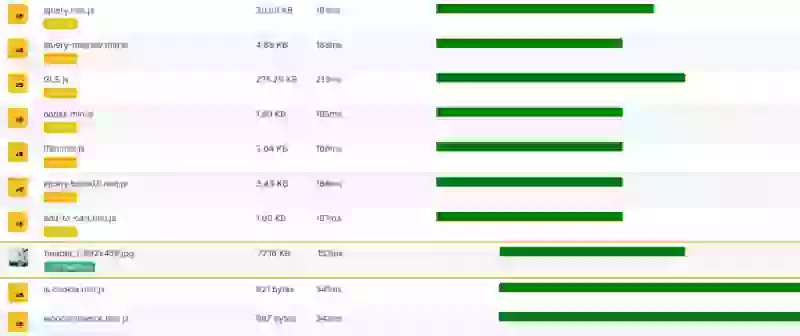
Example: the LCP network resource is delayed by render blocking JavaScripts
The Largest Contentful Paint is prone to bandwidth and CPU competition. When too many scripts fight for early network resources it will delay the Largest Contentful Paint network resource and early CPU work will delay the LCP by blocking the main thread.
The Interaction to Next Paint can be affected by scripts executing right before an interaction. When scripts execute they block the main thread and will delay any interaction during that execution time.
Scripts can also cause a Cumulative Layout Shift if scripts 'change how the page looks'. Ad scripts that inject banners into the page and sliders are notorious for doing this.
5 types of JavaScript priorities
I like to distinguish between 5 types of JavaScript priorities.
- Render Critical: these scripts are among the worst to have. They change the layout of the page and without loading these scripts the layout will be completely different. Example: some slider scripts or an A/B test.
- Critical Scripts: These scripts handle critical page functionality and without these scripts critical tasks like adding a product to a cart, site search or navigation is not possible.
- Important Scripts: These scripts handle important business logic and your site depends on these. For example: Analytics.
- Nice to Have Scripts: These scripts are nice to have but if push comes to shove we do not really need them for the page to function. For example a chat widget or an exit intent.
- Future Scripts: These scripts might be critical or nice to have but we do not need them right now because 'other steps' need to be taken before we can actually use these scripts. For example a multi-stage checkout script.
Before we look at each priority level, here is how Chrome assigns network priority to different script types:
| Script type | Chrome priority | Blocks rendering? |
|---|---|---|
<script> in <head> | Highest | Yes |
<script async> | Low (download) / High (execute) | No |
<script defer> | Low | No |
<script> at end of <body> | Medium / High | No |
Understanding these defaults is the key to resource prioritization.
1. Render-Critical Scripts
These scripts directly change the layout of the page. Without them, the page looks completely different from its intended design. Examples include scripts for sliders or A/B testing frameworks that alter the layout early in the loading process.
The problem with these scripts is that they cannot be deferred or delayed. Any delay will cause the website layout to shift causing a poor UX and the Core Web Vitals to fail.
<!DOCTYPE html>
<html>
  <head>
    <meta charset="utf-8" />
    <title>Page Title</title>
    <link href="styles.css" rel="stylesheet" />
    <script src="render-critical.js"></script>
  </head>
  <body></body>
</html>
Best Practices:
- Avoid render critical scripts whenever possible. Rewrite your code to remove the dependence on these types of scripts.
- If there is no avoiding it, inline or load only the absolutely necessary parts of these scripts.
- Do not defer or async these scripts and place them at the top of the head to trigger an 'as early as possible' download.
2. Critical Scripts
These scripts enable fundamental interactions. Without them, critical tasks like site navigation, adding items to a cart, cookie notice or performing a search become impossible. They are indispensable for the site's core functionality.
These scripts should be placed in the head of the page with either the async or defer attribute. For a full comparison of these two approaches, see async vs defer and how they affect the Core Web Vitals.
<script defer src="critical.js"></script>
<script async src="critical.js"></script>
Best Practices:
- Keep scripts like these to a minimum and do not combine this functionality with other, less critical functionality.
- Load these scripts early using
asyncordefer, depending on their dependencies. - Use Real User Monitoring to identify bottlenecks in execution and make sure their performance aligns with user needs.
3. Important Scripts
These scripts support your business but they are not needed for the page to work. Analytics scripts, for example, provide essential data but do not need to load before more important visual elements. The distinction between critical and important scripts can be a matter of debate so be sure to talk to all stakeholders before setting this priority!
There are 2 reliable ways to lower the script priority for these types of scripts.
<html>
<head>
<!-- method 1: inject after DOMContentLoaded -->
<script>
  document.addEventListener('DOMContentLoaded', function() {
    var script = document.createElement('script');
    script.src = 'important.js';
    document.body.appendChild(script);
  });
</script>
</head>
<body>

<!-- method 2: place at the bottom of the page -->
<script defer src="important.js"></script>
</body>
</html>
1: Inject after DOMContentLoaded
By injecting the script after the DOMContentLoaded event, you ensure the script starts downloading directly after the HTML has been fully parsed. This allows discoverable resources, such as images and fonts, to take precedence. This method provides a balance: the script begins loading early enough to avoid delays in functionality but does not compete with early resources that are crucial to initial page rendering.
2: Place at the bottom of the page
This classic technique defers script loading until after the browser has processed the entire document and achieves roughly the same result as technique 1. The only difference is that technique 1 skips your browser's preload scanner while this technique does not. The preload scanner is a lightweight quick scanner that your browser uses to quickly identify and enqueue critical resources. Skipping the preload scanner might be a good idea if there is a possibility of lazy loaded images in the viewport, while using the preload scanner will speed up loading for this script.
A note on fetchpriority: you might expect that fetchpriority="low" on a deferred script would lower its priority. It does not. Deferred and async scripts already load at Low priority in Chrome. Adding fetchpriority="low" to them is a no-op. The fetchpriority attribute only makes a difference on blocking scripts, where it can drop the priority from Highest to High. For more ways to defer JavaScript, see our complete guide.
4. Nice-to-Have Scripts
These scripts enhance the user experience but are not required for the site to function. Examples include chat widgets, customer feedback popups, or optional animations.
These scripts are an ideal candidate for a pattern called 'lazy on load'. This means: wait for the page's load event and then, during idle time, inject the script. Waiting for the load event ensures the script does not compete for bandwidth and CPU with more important early resources. Waiting for an idle moment ensures the browser is not handling more important tasks like user input.
Here is a working example:
window.addEventListener("load", () => {
  const idle = window.requestIdleCallback || ((cb) => setTimeout(cb, 1));
  idle(() => {
    const script = document.createElement("script");
    script.src = "/path/to/script.js";
    document.head.appendChild(script);
  });
});
The setTimeout fallback is needed because Safari does not support requestIdleCallback. For scripts that also need to break up their execution into smaller chunks, consider using scheduler.yield() to keep the main thread responsive and protect your INP score.
Best Practices:
- Lazy-load these scripts after the page has loaded and wait for an idle moment.
- Understand that scripts loaded with this pattern are not guaranteed to load fast.
Across sites monitored by CoreDash, pages that defer non-critical scripts to after the load event score 84% 'good' on INP, compared to 61% for pages that load all scripts eagerly.
5. Future Scripts
Future scripts are those that will not be needed until specific conditions are met. For example, a multi-stage checkout script becomes relevant only after a user has added items to their cart. These scripts can wait until much later in the user's journey.
Take a look at this example. It uses the IntersectionObserver to load the JS logic only when it is needed: when the form is in the visible viewport.
<!DOCTYPE html>
<html>
  <head>
    <script>
      document.addEventListener("DOMContentLoaded", function () {
        const form = document.querySelector("form");
        const observer = new IntersectionObserver(function (entries) {
          entries.forEach((entry) => {
            if (entry.isIntersecting) {
              const script = document.createElement("script");
              script.src = "/sign-up.js";
              document.head.appendChild(script);
              observer.unobserve(form);
            }
          });
        });
        observer.observe(form);
      });
    </script>
  </head>
  <body>
    <form action="/sign-up" method="post">
      <label for="email">Email:</label>
      <input type="email" id="email" name="email" required />
      <button type="submit">Sign Up</button>
    </form>
  </body>
</html>
Best Practices:
- Load these scripts on demand, triggered by user actions.
- Use code-splitting techniques to deliver only the parts required at each step.
- Dynamically inject them only when needed, such as when a user scrolls to a specific section.
Most sites only need two patterns: defer for anything functional and the load+idle pattern for everything else. If you are spending time fine-tuning fetchpriority on scripts, you are probably overcomplicating it. Get the big wins first: defer what you can, delay what you can, and delete what you do not need.
Search Console flagged your site?
I deliver a prioritized fix list backed by field data. Not a 50 page PDF.
Request audit
